
Analytics
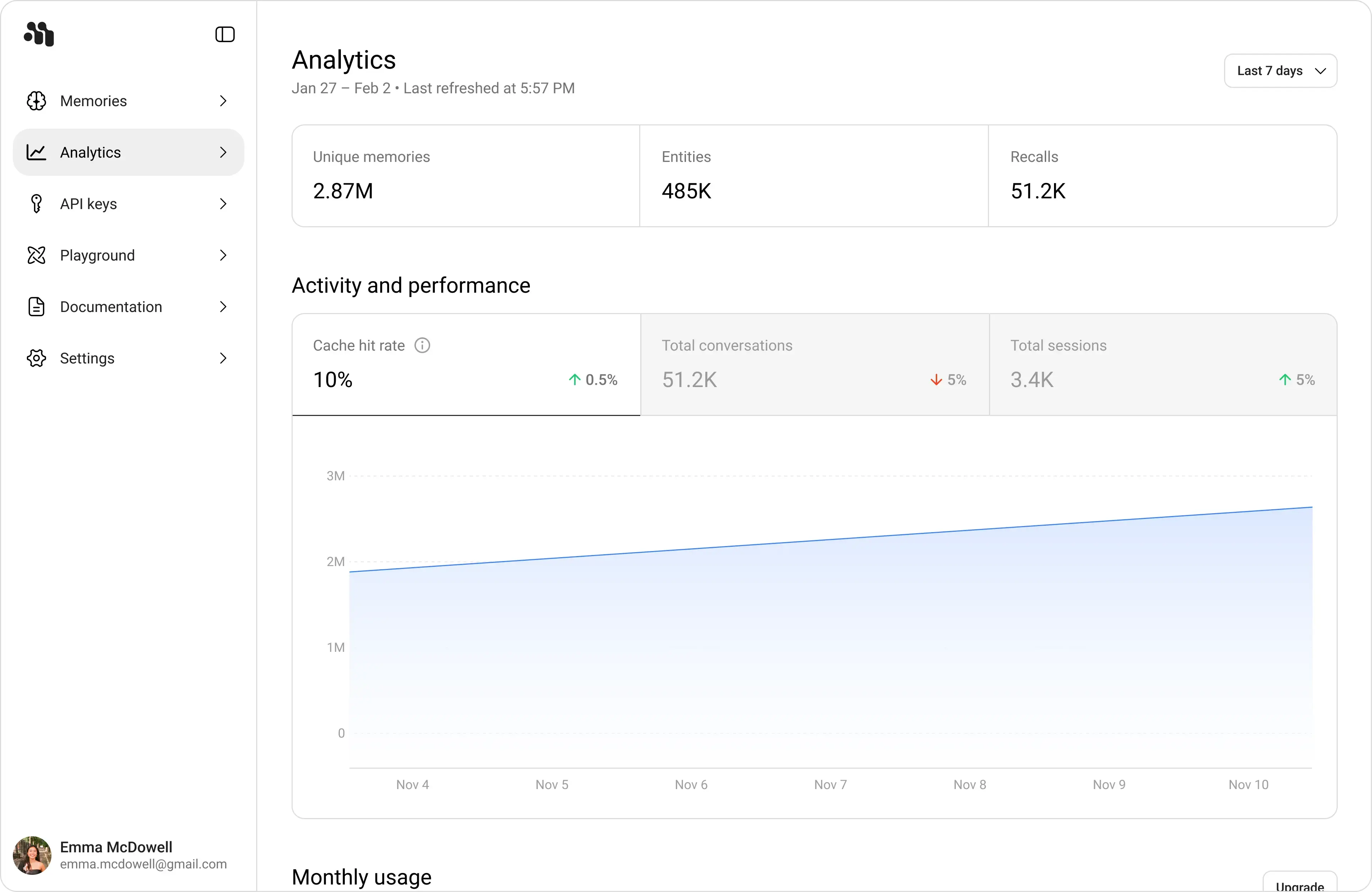
Use Analytics in app.memorilabs.ai to monitor memory creation, recall activity, traffic trends, and quota usage.
Use the date selector (for example Last 7 days) to scope metrics, and check Last refreshed for data freshness.
What Each Data Point Means:
| Data point | Meaning |
|---|---|
| Unique memories | Total number of unique memory records in the selected time range. |
| Entities | Number of unique extracted entities attached to memories in the selected range. |
| Recalls | Number of memory retrieval events served in the selected range. |
| Cache hit rate | Percentage of recall requests served from cache instead of a full retrieval path. |
| Total conversations | Number of conversation threads processed by Memori. |
| Total sessions | Number of distinct sessions in the selected range. |
| Trend chart | Time-series trend for the active activity metric across the selected period. |
| Monthly quota resets on ... | Date when monthly limits reset for your organization. |
| Memories created (usage bar) | Current month created-memory usage vs monthly plan limit. |
| Memories recalled (usage bar) | Current month recall usage vs monthly plan limit. |
| Top subjects | Ranked subjects/entities by memory volume, with entity type tags and relative volume bars. |
Read the Page in Order
- Start with the top KPI cards to understand overall volume and retrieval load.
- Check Activity and performance for traffic trends and directional changes (up/down percentages).
- Review Monthly usage to confirm distance from quota limits.
- Use Top subjects to see which entities dominate memory creation.
Interpreting Directional Changes
- Green upward changes indicate growth versus the comparison period.
- Red downward changes indicate decreases versus the comparison period.
- Combine change percentages with absolute counts to avoid overreacting to small-volume shifts.